All Transaction History
This page lists transactions for all of your ATMs. You can search for transactions as far back as one year.
Note A search query only returns up to the most recent 1000 records, even
if there are more than 1000 that meet your search criteria.
To view All Transaction History, select .
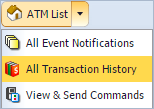
To view the Transaction History page for a specific ATM, select the ATM from the ATM List screen, and then select the Transaction History tab.
- Search
-
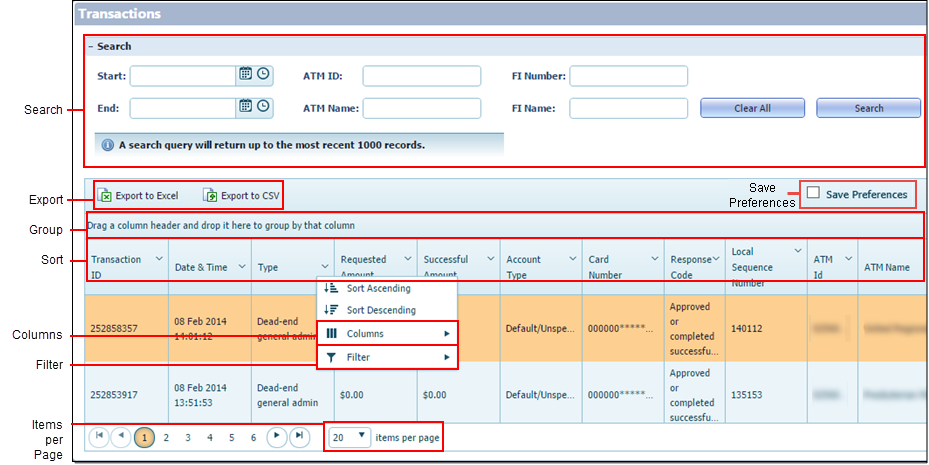
You can search using these fields.
-
Start and End search over a time range. If you only select a date, the time
defaults to 12:00
AM. If you only select a time, the date defaults to the current
day.Tip You cannot select a date or time in the future when searching for the following:
- Event Notification
- Transaction History
- Electronic Journal
- Processed Commands
- ATM ID supports * wild-card search.
- ATM Name returns results for partial matches.
- FI Number requires an exact match.
- FI Name returns results for partial matches.
-
Start and End search over a time range. If you only select a date, the time
defaults to 12:00
AM. If you only select a time, the date defaults to the current
day.
- Export
- You can export the list to Excel® or CSV® format.
- Save Preferences
- Select this box to save your grid preferences. If this box is selected,
you can go to a different screen or exit the application, and your preferences remain
for that grid until you change them.
You can save your preferences for the following grids:
- ATM List
- ATM Details
- Event Notifications
- Transaction History
- Pending Commands
- Processed Commands
- Event Notifications
- Transaction History
- View & Send Commands
- Group
- You can group the list by dragging one or more columns to the grouping area at the top of the grid.
- Sort
- Select the column header to sort by column.
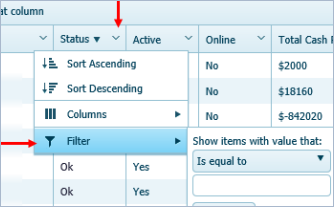
- Show/Hide Columns
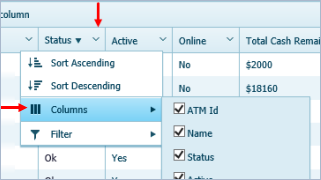
- Click the chevron in the column header to open the Columns function. You can
show or hide columns by selecting or clearing their check boxes. Column options vary
depending on the page.
- Filter
- Click the chevron in the column header to open the Filter function. You can
create a filter to return more specific results. Filter options vary depending on the
column and the page.
- Items per Page
- This feature indicates the number of items that appear per page.
When you select a transaction from the list, detailed information appears in the Transaction & Amounts tab on the right.
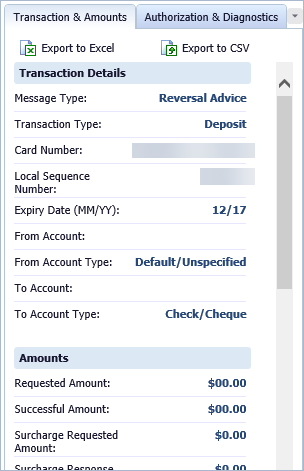
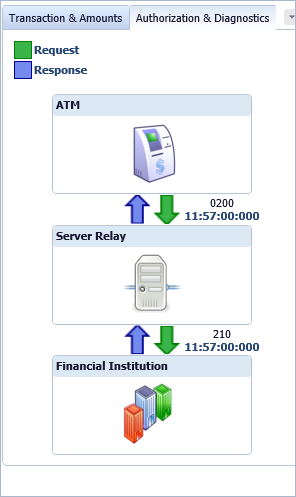
The Authorization & Diagnostics tab shows the request and authorization timestamps for the selected transaction.