🖶

Resetting a Password - User Administration

You can reset a password through User Administration in the CPS Portal.

  1. Select Administration > User Administration.
    Note If you are an ATM Driving Product Administrator, you must select the institutions you want to work with from the View Administrator Settings for drop-down box.
  2. Select the radio button for the user whose password that you wish to change.

    Select User

  3. Select Reset Password.
    The following confirmation screen appears:
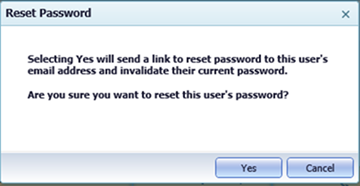
    Reset Password

  4. Select Yes.
    The user receives an email with a link to reset their password. The old password becomes invalid.
    Note A user must correctly answer a security question before the password can be reset. If security questions and answers have not previously been set up, that is done at this point.
Note For an expired password, the Password Status changes from Expired to Active after the user resets their password using the email link.